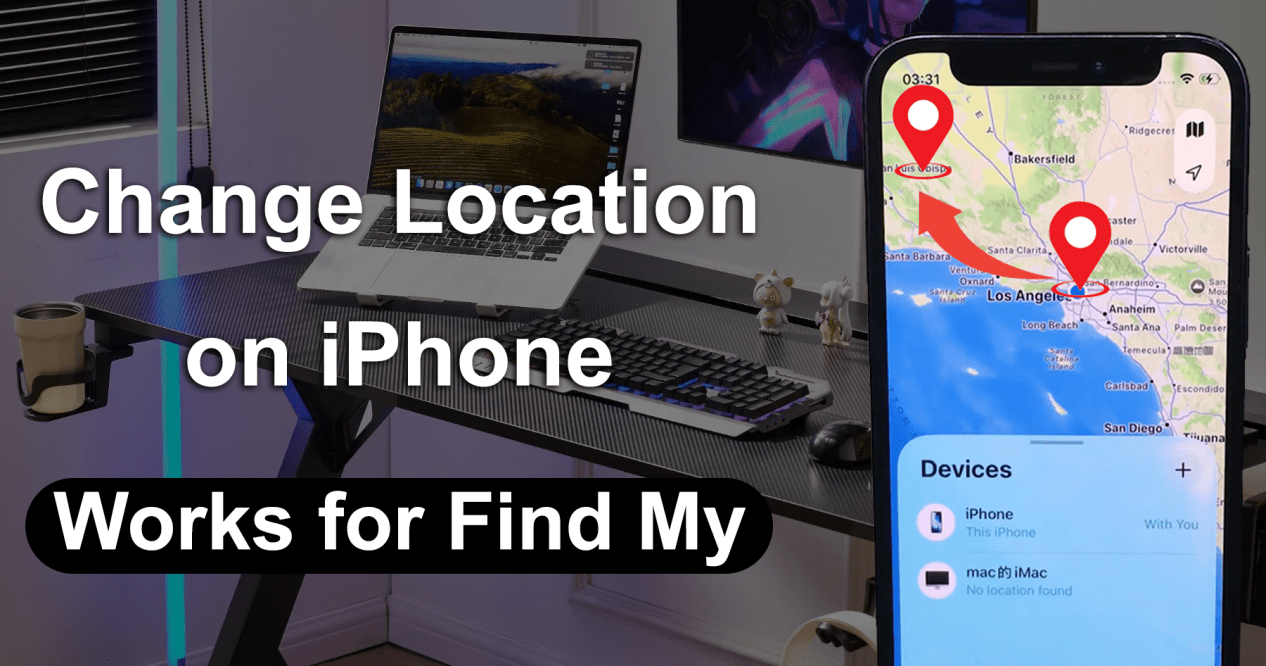
There are several reasons why you might want to change your location on iPhone. You may want to access apps available in another country, adjust regional settings, browse with a different IP location, or change the GPS location reported by your device. However, these methods do different things. Changing your App Store country does not change your GPS coordinates, while a VPN changes your IP-based location rather than your physical GPS location.
Below are some of the most common ways to change location on iPhone, including how to use an iPhone location changer and how to fake your location on Find My iPhone.
1. Change App Store Country or Region
If your goal is to download apps or access content available in another country, changing your Apple Account country or region may help. Apple provides a built-in option for changing your account region. Before doing so, you may need to spend your remaining account balance, cancel certain subscriptions, and provide a valid payment method for the new region.
- Open Settings on your iPhone.
- Tap your name at the top.
- Select Media & Purchases, then tap View Account.
- Tap Country/Region.
- Select Change Country or Region.
- Choose your new country and follow the on-screen instructions.
This method is useful for changing your App Store region, but it does not change your iPhone’s GPS location.
https://www.youtube.com/watch?v=y8Xng8mUvBw
2. Change Device Region Settings
You can also change the region settings directly on your iPhone. This affects regional formats such as dates, numbers, calendars, measurement systems, and temperature units.
- Open Settings
- Tap General
- Select Language & Region
- Tap Region
- Choose the region you want to use.
This option is useful when switching to a different country or adjusting local settings. Keep in mind, though, that it only changes your device’s regional preferences and does not alter its actual GPS position.
3. Use GPS Spoofing Software
If you want to actually change GPS location on iPhone, a dedicated GPS spoofing tool is a better option. A desktop-based GPS location changer for iPhone can let you select a location on a map and make your device report that location in supported scenarios. This can be useful for location-based apps, testing, privacy-related use cases, and other situations where you need to simulate a different location.
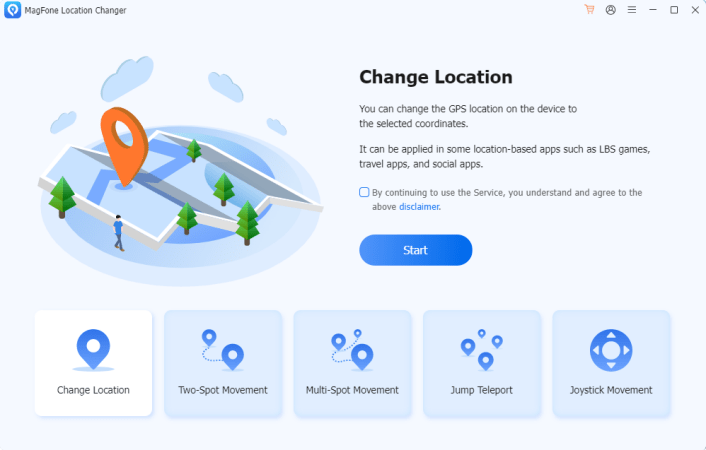
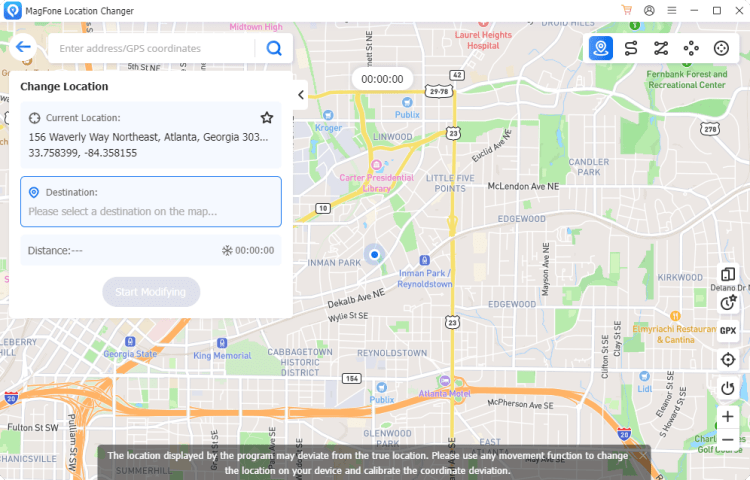
MagFone Location Changer is one option for users who want to fake GPS location on iPhone without physically traveling to another place. After connecting your iPhone to a computer, you can select a location on the map and apply it to the device. It also provides several movement modes. Depending on your needs, you can instantly teleport to a location, simulate movement between two places, create a route with multiple locations, or control movement with a joystick.
How to Fake Location on Find My iPhone Using MagFone Location Changer
Find My allows you to share your location with friends and family, and Apple lets you choose which Apple device is used as your location source. If you want to fake location on Find My iPhone, MagFone Location Changer provides a way to change the location shared from a supported iPhone.
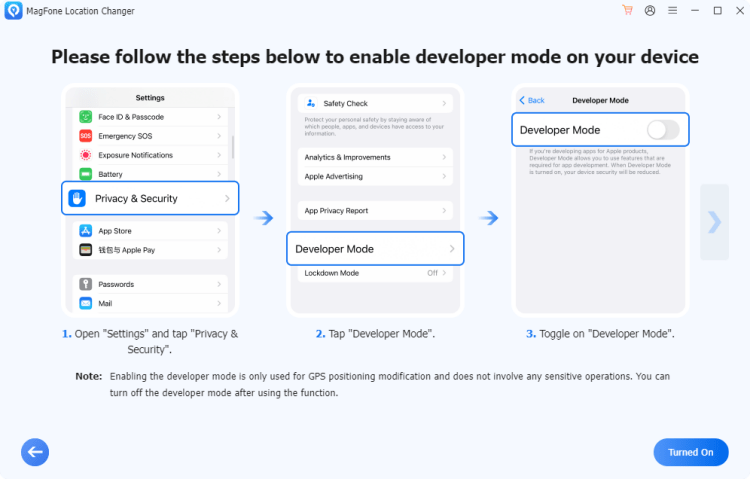
Step 1: Install MagFone Location Changer on your computer and connect your iPhone using a USB cable. Follow the on-screen instructions to establish the connection.
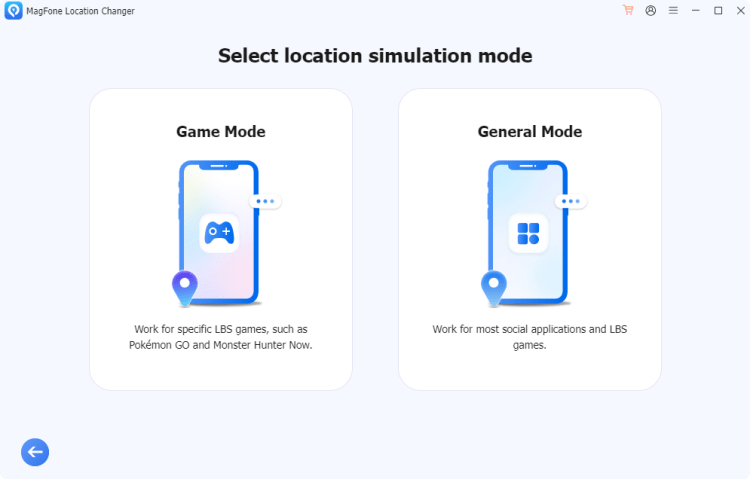
Step 2: Select General Mode, and search for your desired destination or select the location directly on the map after you entering the map.
Step 3: Click Start Modifying to apply the selected location. In supported scenarios, your changed location can then be reflected in the location shared through Find My. This makes MagFone useful for users searching for how to fake location on Find My iPhone without physically traveling to the target location.
4. Use a VPN
A VPN is another common way to appear as if you are connecting from another location. It routes your internet traffic through a server in a selected country or city, which can change your apparent IP location.
- Install a trusted VPN app on your iPhone.
- Open the app and choose a server location.
- Connect to the selected server.
- Your internet traffic will appear to come from that server’s location.
However, a VPN does not normally change your iPhone’s GPS coordinates. If you are specifically looking for a way to fake GPS location on iPhone, you need a GPS spoofing solution rather than a VPN.
FAQ About Changing Location on iPhone
Can I change my location on iPhone?
Yes. You can change your App Store country, device region, IP location, or GPS location depending on your goal. Each method affects a different type of location data.
How can I change GPS location on iPhone?
A dedicated GPS location changer for iPhone can simulate a different GPS position. Tools such as MagFone Location Changer let you select a location on a map and apply it to a connected iPhone.
How do I fake location on Find My iPhone?
You can use a supported location-changing solution such as MagFone Location Changer to change the location reported by your iPhone and, in supported scenarios, the location shared through Find My.
Does a VPN change GPS location on iPhone?
No. A VPN primarily changes your IP-based location. It does not normally change the GPS coordinates reported by your iPhone.
Can I change my iPhone location without jailbreaking?
Some desktop-based GPS location changers are designed to work without jailbreaking. However, requirements and compatibility can vary depending on the iPhone model and iOS version.
Final Thoughts
There is more than one way to change location on iPhone, but each method serves a different purpose. Changing the App Store region is useful for accessing regional content, while changing the device region affects local settings. A VPN can change your apparent IP location, but it cannot normally spoof GPS coordinates.
For users looking to change their iPhone’s GPS location or display a different position in Find My, a specialized tool like MagFone Location Changer offers a straightforward way to do it. You can select a location on the map, simulate movement, and change your device’s reported location in supported scenarios.