Amazon Prime Video lets subscribers download movies and shows for offline viewing, but those downloads are tied to the Prime Video app, your account status, and the device you’re using. They also come with several restrictions that limit where and how you can watch them.
In this guide, you’ll learn why Prime Video downloads aren’t regular MP4 files, what limitations come with official downloads, and how to save Amazon Prime Video content in a more flexible format for offline playback.
Part 1. Can You Download Amazon Prime Video as MP4?
No. While the Amazon Prime Video app lets you download movies and TV shows for offline viewing, it does not save them as standard MP4 files. This is because Prime Video content is protected by DRM (Digital Rights Management), a technology that prevents unauthorized copying and distribution.
Even if you locate where the app stores the downloads, you’ll find that the files are locked as cached data, which cannot be converted to MP4 or any other playable video format. This restriction applies to all types of Prime Video downloads, including content included with a Prime membership, rented titles, and purchased movies or shows.
Part 2. How to Convert Amazon Prime Video to MP4
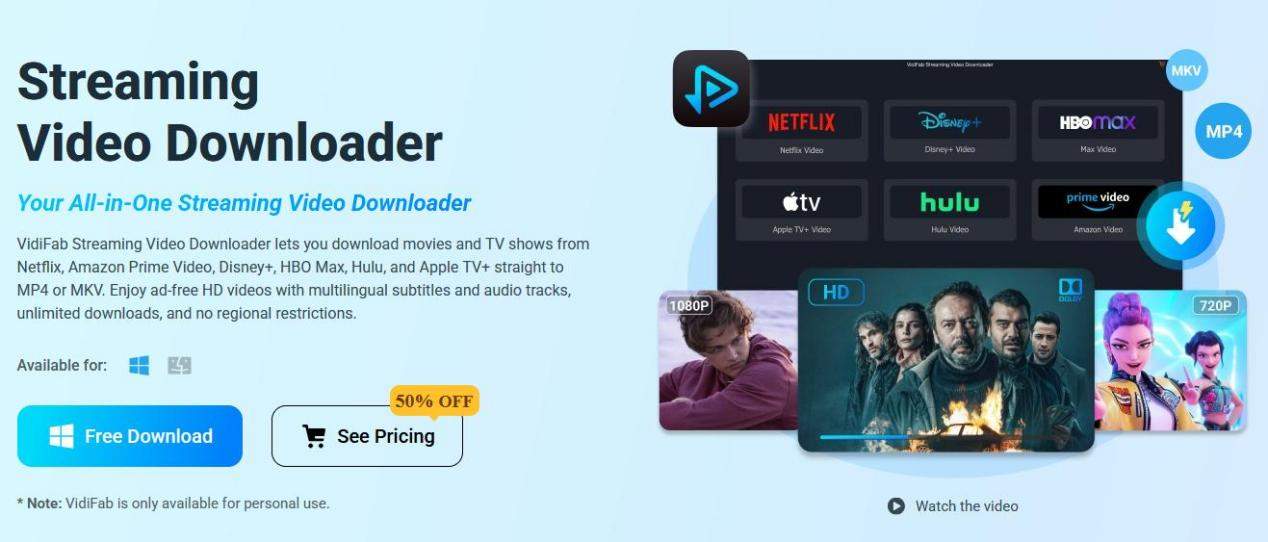
A simple way to save Prime Video content as MP4 is by using VidiFab Streaming Video Downloader. This software works on both Windows and Mac and allows downloads from Amazon Prime Video, Netflix, Disney+, Hulu, HBO Max, Apple TV+, and other popular platforms.
The main feature of the VidiFab downloader is its ability to download videos from Prime Video in MP4 or MKV format with 1080p quality, including original audio tracks and multilingual subtitles. This enables you to back up your downloads without expiration and provides more options for playing them on devices that do not support the Amazon Prime Video app.
How to Download Prime Videos as MP4 Files Using VidiFab
VidiFab Streaming Video Downloader is compatible with Windows 10 and later, as well as macOS 11 or later. The software is free to download, and if you have an active Prime Video membership, you can download any supported titles from your subscription without ads. Here’s how it works:
Step 1. Sign In and Choose Your Output Format
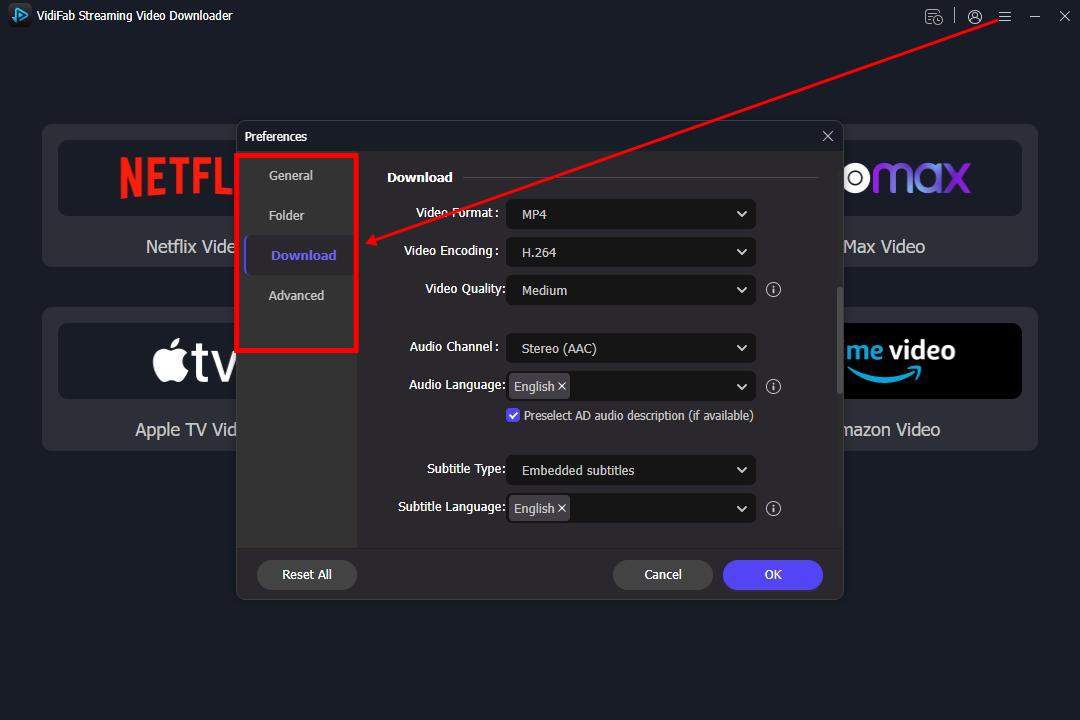
Open VidiFab Streaming Video Downloader. Go to Preferences and then to the Download section. Select MP4 as your output format and set the output folder for your downloads. You can also adjust video quality, encoding, audio channels, and more. Click OK to save your settings. Return to the main screen, click on the Prime Video card, and log into your account.
Step 2. Find the Prime Video Title You Want to Save
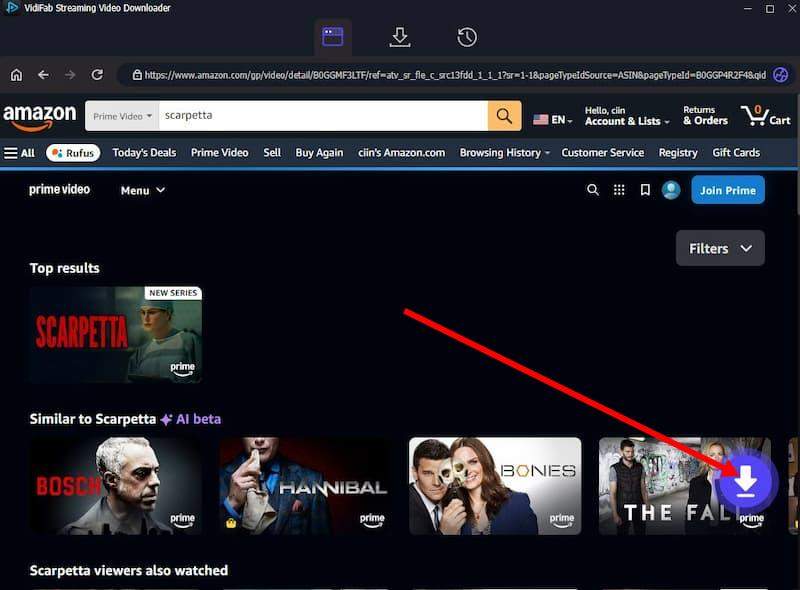
Use the built-in browser to browse or search for the title you wish to download on Prime Video. Open the movie or TV show page. VidiFab will automatically analyze the video stream and display a download button in the bottom right corner; click on it.
Step 3. Select Video Quality, Audio, and Subtitles
A download settings window will appear. Customize your preferences for video, audio, and subtitles:
- Video Quality: Up to 1080p Full HD
- Audio Tracks: Select your preferred language and available audio quality
- Subtitles: Save subtitles as embedded subtitles or separate SRT files
- Batch Download: Check the Select All box if downloading a TV series.
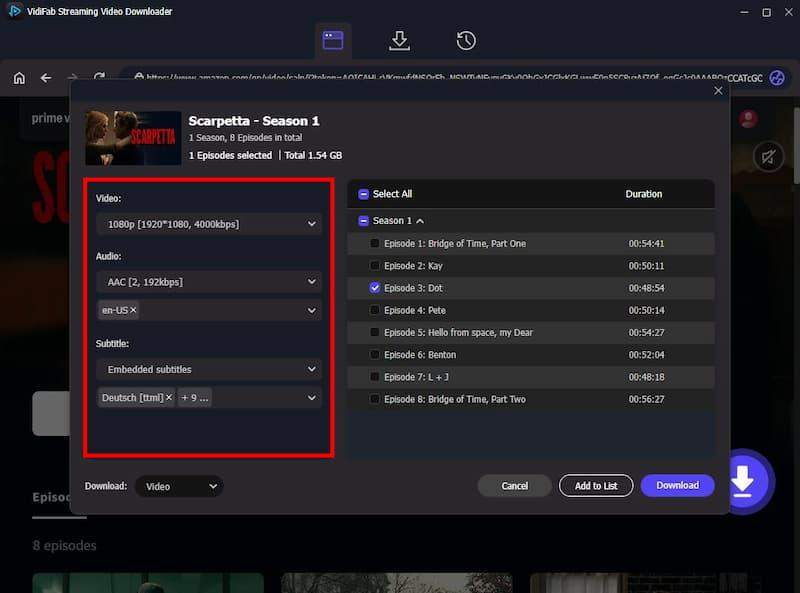
Step 4. Download and Access Your MP4 File
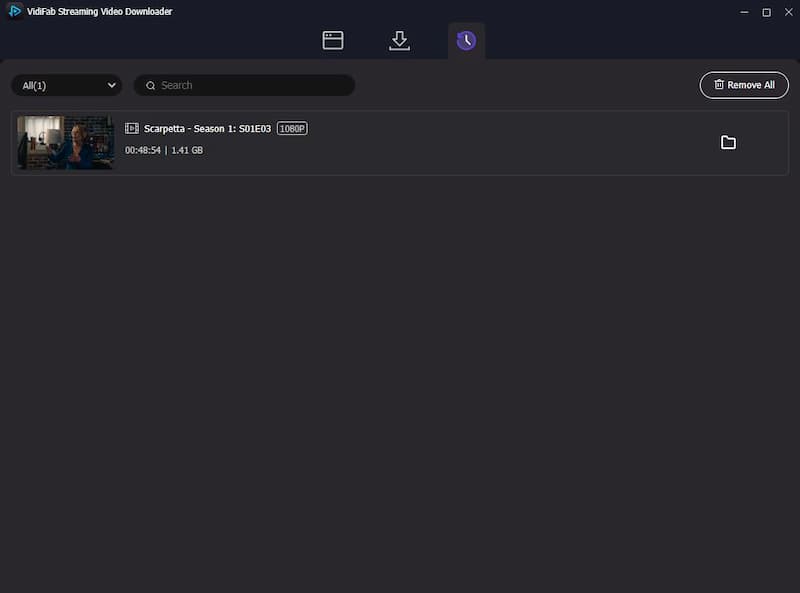
Click Download. Once the download is complete, go to the History tab and click the folder icon to find your file. Your Prime Video content is now saved as an MP4 file, playable on VLC, Plex, Windows Media Player, Smart TVs, and other compatible devices.
Note: VidiFab Streaming Video Downloader is for personal use only. Please follow Amazon’s Terms of Service and local copyright laws. Downloaded content is for private viewing and should not be shared, redistributed, or used for commercial purposes.
Part 3. Prime Video Downloads vs MP4 Files
If you are considering whether converting Prime Video content to MP4 is worthwhile, here is a brief comparison:
| Feature | Prime Video Download | MP4 File |
|---|---|---|
| Works Without Prime Video App | No | Yes |
| Playable in VLC | No | Yes |
| Transfer to USB Drive | No | Yes |
| Upload to Plex | No | Yes |
| Expires Over Time | Yes | No |
| Available Across Devices | Limited | Yes |
| File Format Control | No | Yes |
So Which Download Method Should You Choose?
If you only need to watch a movie during a flight or a short trip, Prime Video’s built-in downloads are usually enough. Just remember that downloaded titles can expire, so you’ll need to watch them within the available viewing period set by Prime Video.
However, if you want to view videos on a non-smart TV, a hotel TV where you prefer not to log in, or other devices without internet access or the Prime Video app, downloading in MP4 format offers a solution.
Part 4. FAQs
Is it legal to convert Amazon Prime Video to MP4?
It depends on your local laws and how you use the files. Converting Prime Video content for personal viewing is usually seen as personal use. However, uploading, sharing, selling, or distributing copyrighted videos without permission is typically illegal. This guide is for personal use only. Always adhere to copyright laws, Amazon’s terms of service, and the rights of content owners.
Can I transfer Prime Video MP4 files to a USB drive?
Yes. MP4 files can be copied to USB drives, external hard drives, and other storage devices.
What’s the difference between MP4 and MKV?
MP4 offers broad compatibility across devices and media players. MKV can support additional audio tracks and subtitle options, making it popular for media collections.
Ready to Build Your Offline Video Library?
Prime Video’s built-in downloads work well for temporary offline viewing, but they remain locked inside the app. If you want more control over where and how you watch your content, saving videos as MP4 files can provide greater flexibility for playback, storage, and device compatibility.